As easy as A-B-C.
Set up A and B once. Run C each time you start a bot on a new stock.
Calibrate shows how settings would have done on past days. Past days don't promise anything about today. For your first runs, pick a low risk level and use the row with the lowest Score. Any trade can lose money.
SightLine AutoPilot
SightLine AutoPilot is a script that runs in your own TradingView account. Each copy you run on a chart is one bot. Every plan lets you run as many bots as your TradingView plan allows.
- Choose a plan. Click Plans in the top menu, then click Subscribe under the plan you want. It sets the most money each bot can use.
- Type your TradingView username at checkout. After you pay, your Account page (log in, then click Account in the top menu) shows your plan when SightLine AutoPilot has been added to your TradingView account. Access is added within 24 hours. If it takes longer, email support@sightlinelabs.org.
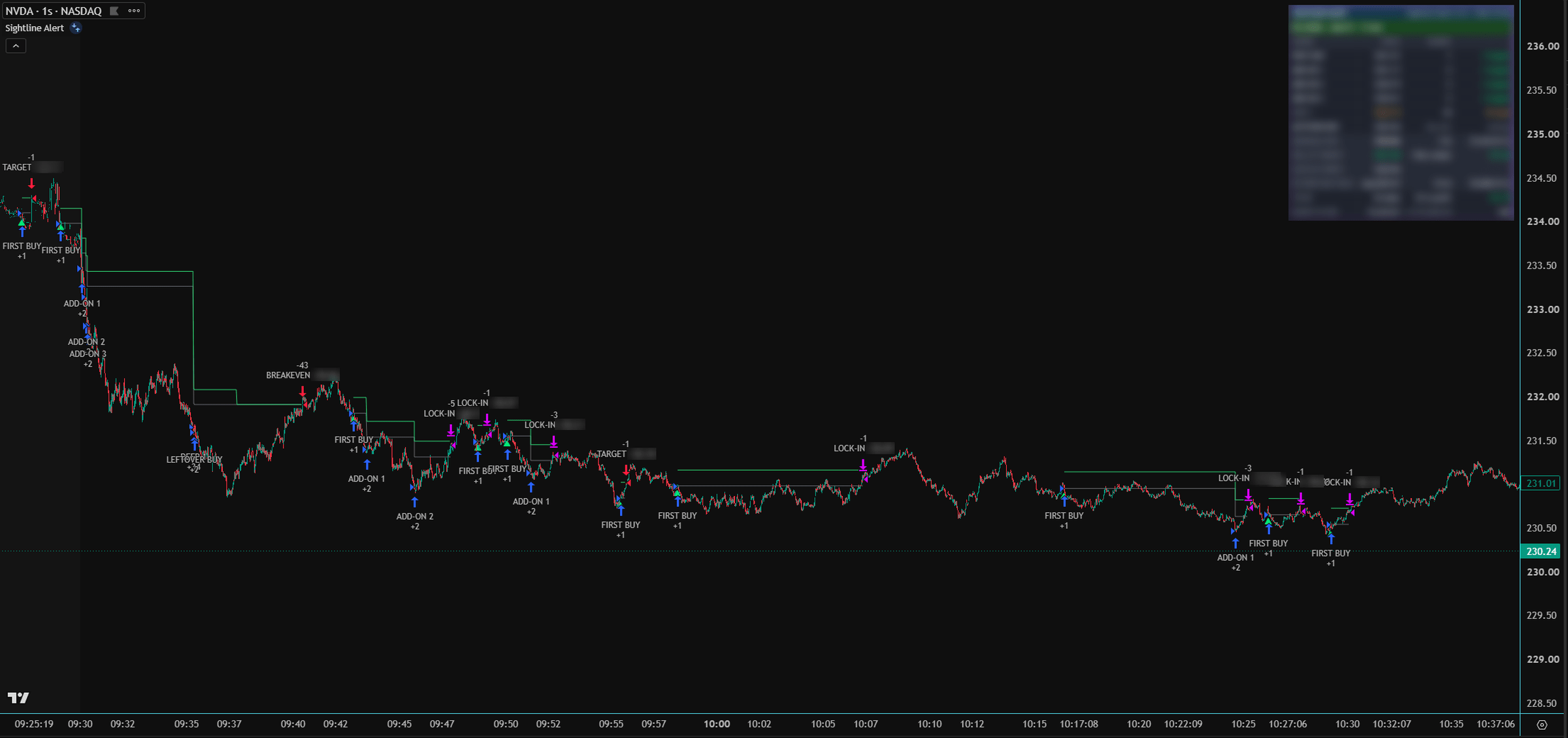
- Put SightLine AutoPilot on your chart. In TradingView, open your stock's chart. Click Indicators at the top of the chart, open the Invite-only scripts tab, and click your plan's copy, for example SightLine AutoPilot (500 limit). Close the window. A status panel appears at the top right of the chart. That's your first bot.
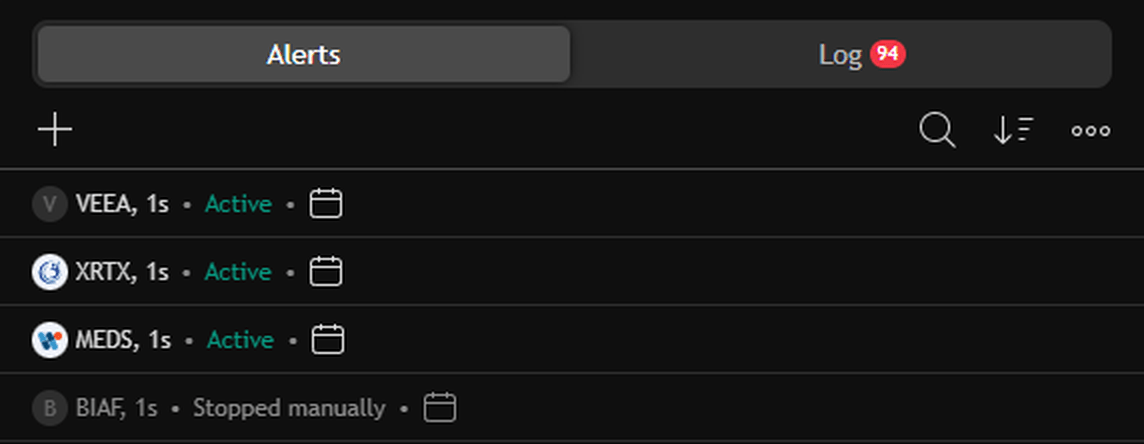
- Run more bots. Open another stock's chart and repeat step 3. Each chart needs its own settings and its own alert.
Bridge
OptionalBridge is a Windows program that places your bots' trades in TradeStation for you. It runs on your computer, not ours. One-time purchase for one computer.
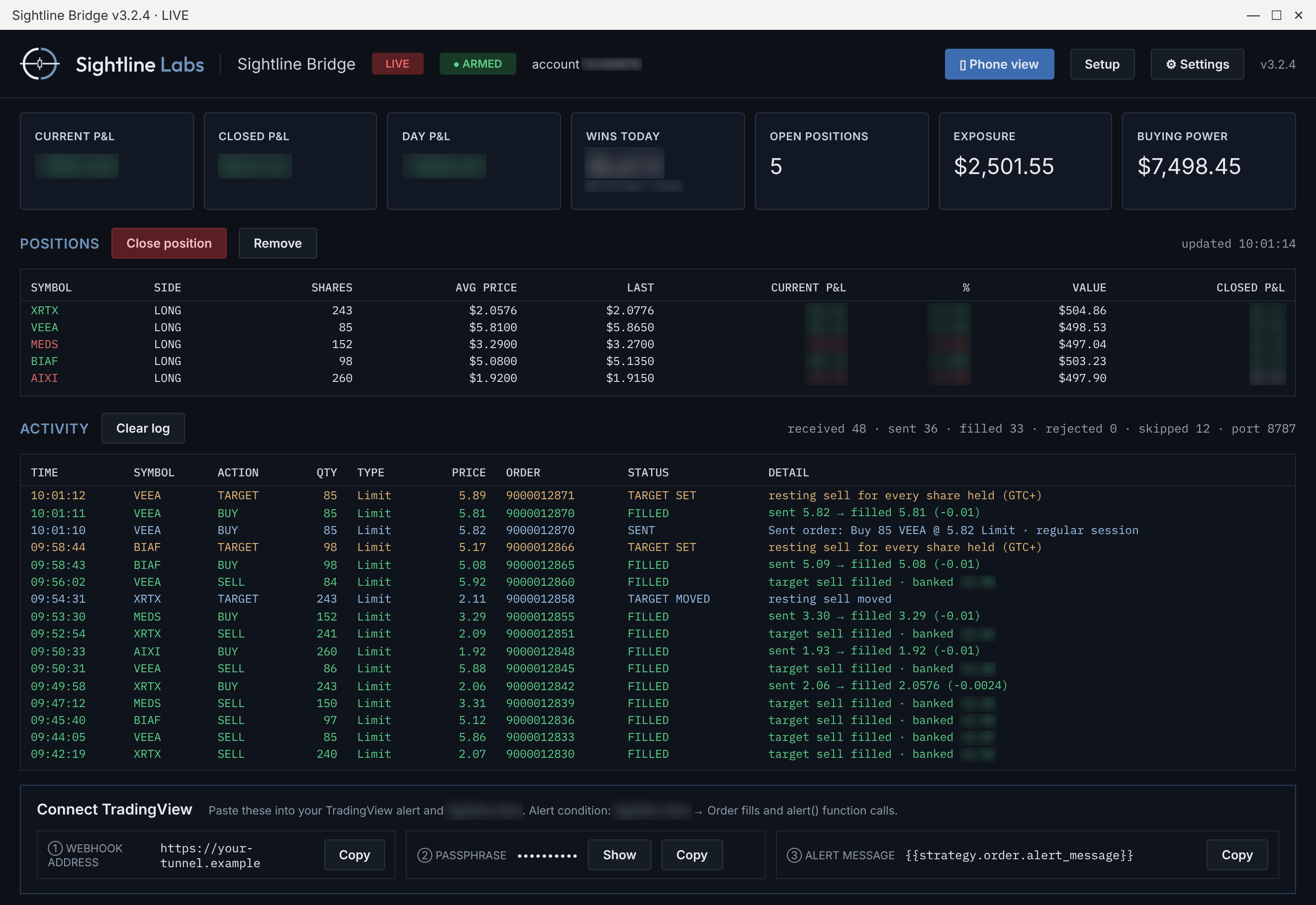
- Buy Bridge. Click Bridge in the top menu, then click Buy Bridge · $249. You need an active SightLine subscription. After you pay, log in, go back to the Bridge page and click Download Bridge. The zip file goes to your Downloads folder.
- Install it. In your Downloads folder, right-click the zip, choose Properties, tick Unblock, and click OK. Right-click it again, choose Extract All, then open the folder and double-click SightlineBridge.exe. Setup opens by itself and walks you through five short steps, including connecting your TradeStation account. The Bridge manual has a picture of each one.
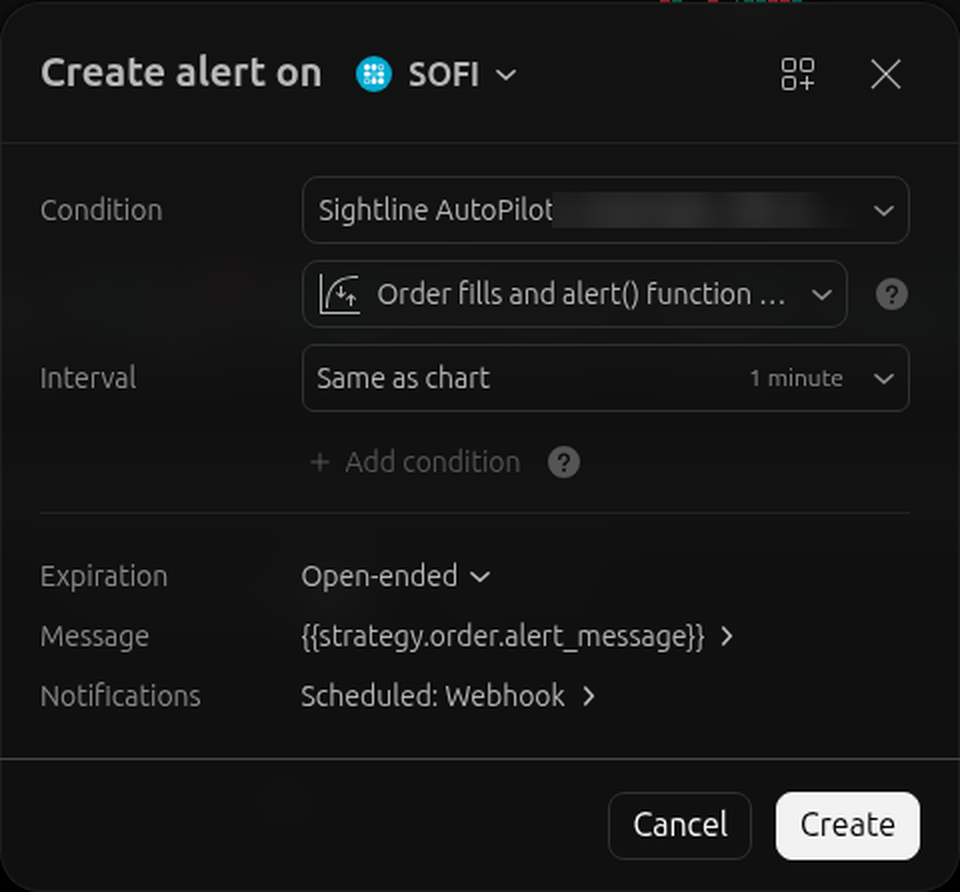
- Connect TradingView to Bridge. At the bottom of Bridge's main window, the Connect TradingView box has three things, each with a Copy button. Paste 1 · Webhook address into your TradingView alert (Notifications tab, tick Webhook URL). Paste 2 · Passphrase into SightLine AutoPilot's settings (8 · Display and alerts → Bridge passphrase). Paste 3 · Alert message into the alert's Message box.
What Bridge does for you
- Sells can be placed for you. After a buy, Bridge can place a sell at your target price. If you buy more shares yourself in TradeStation, that sell is updated to cover them.
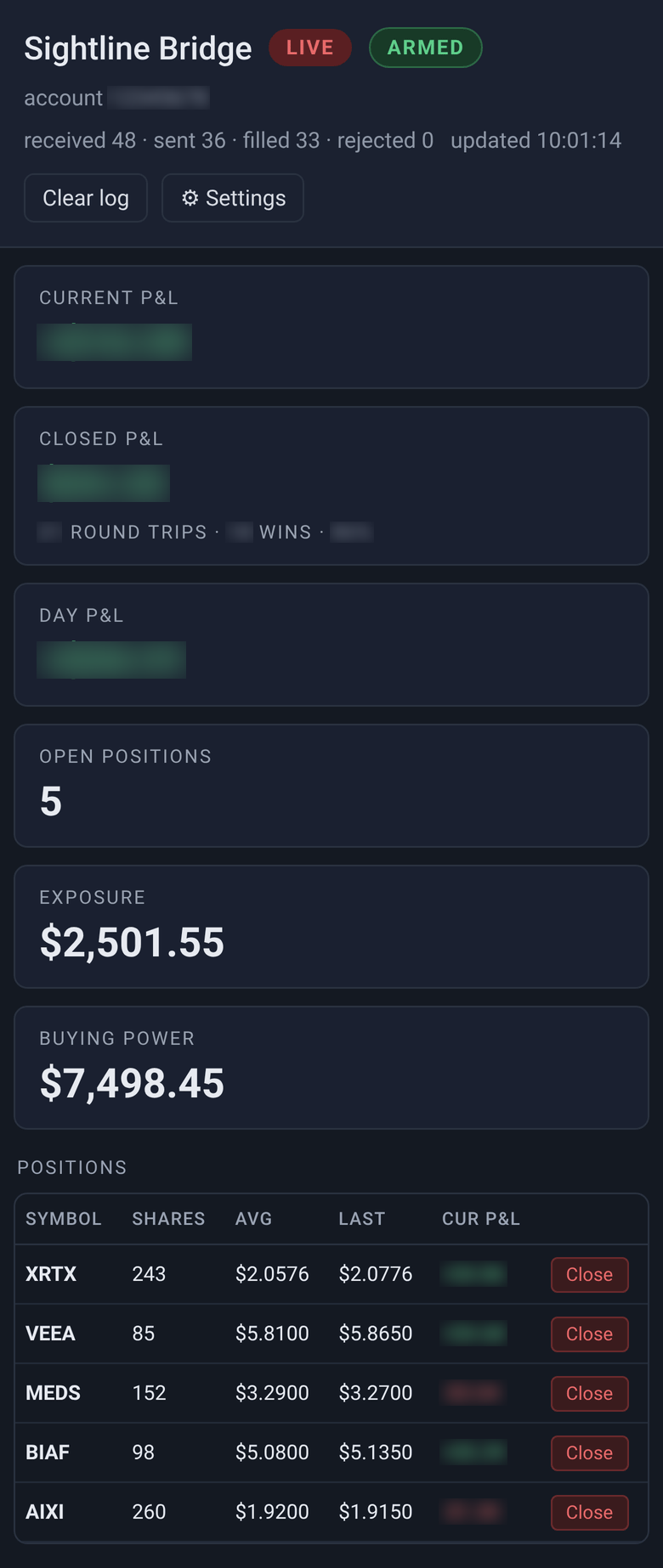
- Take it with you. Bridge's dashboard is on your computer. To open it on your phone: In Bridge's main window, click 📱 Phone view. Point your phone's camera at the square code and tap the link that appears. The first time, a warning page from ngrok opens: tap Visit Site. On your phone you can see live trade stats, turn Bridge on or off, and close trades by hand.
Calibrate
Every stock moves differently. SightLine Calibrate looks at your stock's past prices and suggests settings for your bot.
AutoPilot has a lot of settings. Finding the right ones by hand means tweaking, waiting for the chart to refresh, tweaking again, and never being quite sure which change made the difference. Calibrate does that work for you in minutes. No guessing, no endless tweaking, just the settings that matter, so you can focus on trading.
- Open your stock's chart in TradingView. SightLine AutoPilot needs to be on it (see A, step 3).
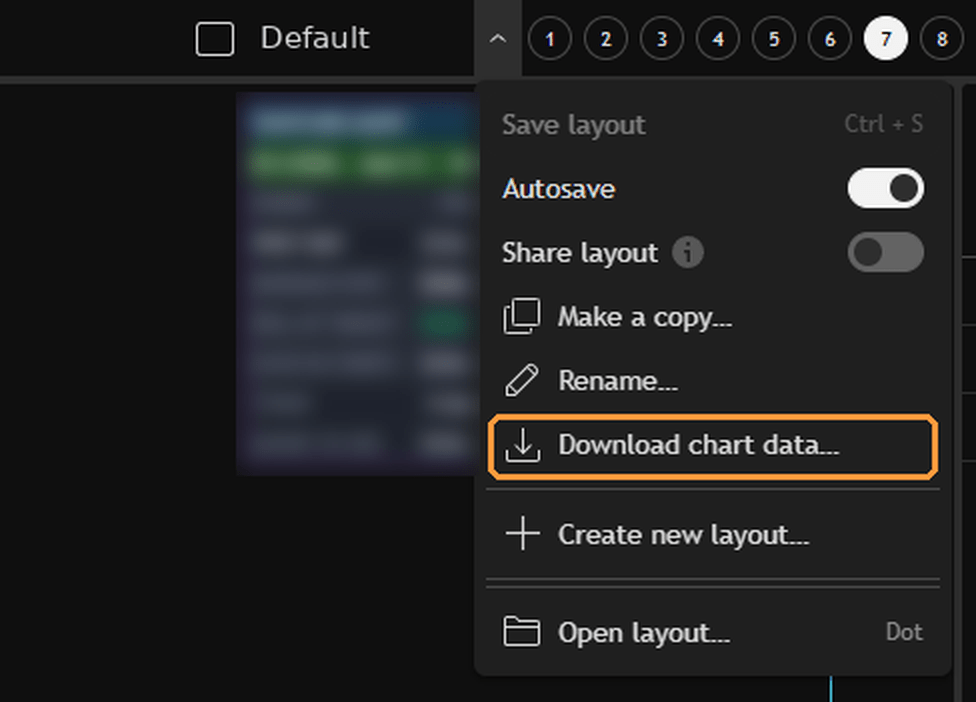
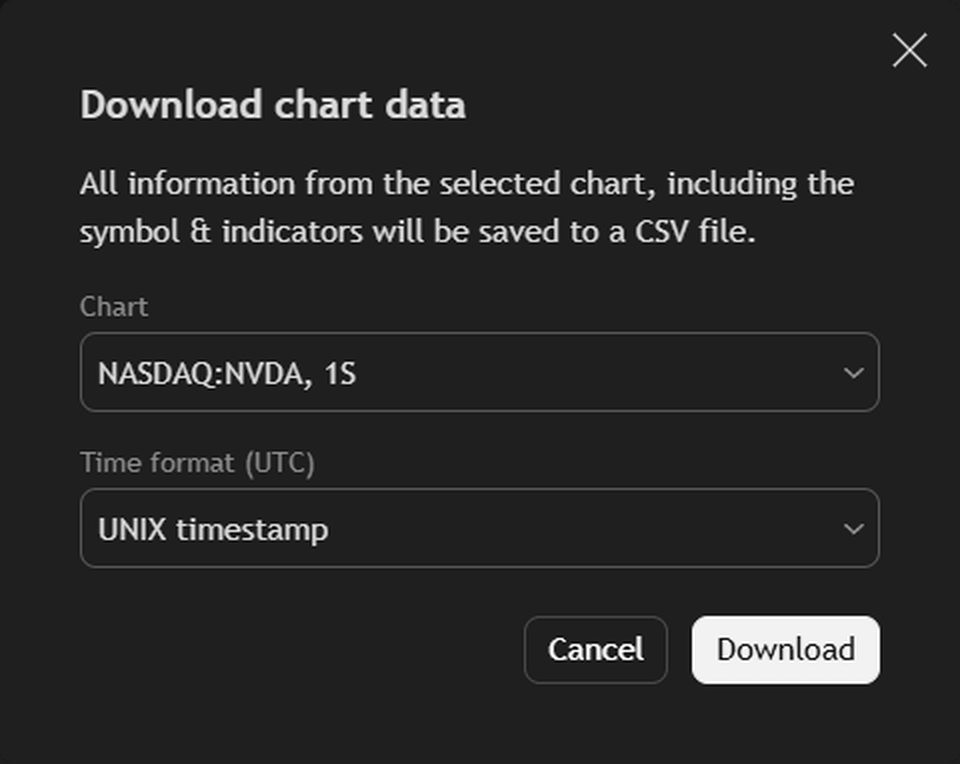
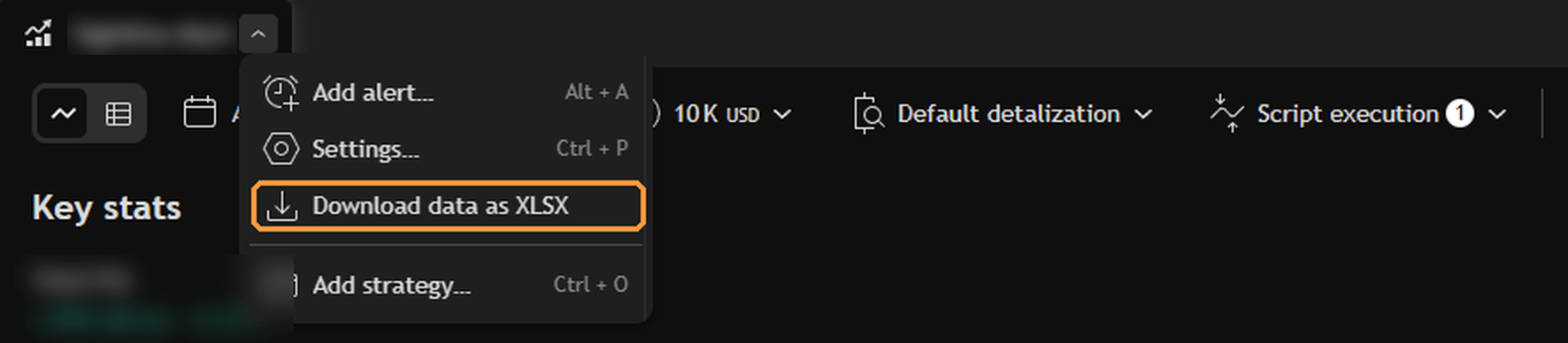
- Save two files from TradingView (and a third if you want). Save them in this order, and don't change the chart or any setting in between. First, set the time frame. Look at the top toolbar of the chart. Click the interval menu (Chart interval). A list of intervals opens. Pick the one you trade on, for example 1 minute. Next, set the time zone. Look at the bottom right of the chart. Click the clock (the time zone shown there). A list of time zones opens. Pick Exchange, not UTC. The chart times now match the exchange. File 1, the chart data: scroll the chart back a little before your Start date. At the top right of TradingView, click the arrow next to your layout name, choose Download chart data, then click Download. A .csv file lands in your Downloads folder. File 2, the report: in the Strategy Tester panel under the chart, click the arrow next to SightLine AutoPilot and choose Download data as XLSX. An .xlsx file lands in your Downloads folder. File 3, optional, the slower chart: now click the interval menu on the top toolbar and choose a slower one (if you trade on the 1-minute chart, choose 5 minutes). Scroll the chart back as far as you can. Download the chart data again, the same way as File 1. Then change the chart back to the time frame you trade on. You don't need to open any of the files; load them straight into Calibrate. You need TradingView Plus or higher to save these files.
- Click Log in at the top of this site, then click Calibrate in the top menu. Under Chart data (.csv), click Choose Files and pick the .csv. Under Strategy Tester report (.xlsx), click Choose File and pick the .xlsx. If you saved the slower chart, add it under Slower Reference Chart (optional). Click Load files. Each file's name and the dates it covers appear when it has loaded.
- Click Check. When it says ✓ All trades match · Testing unlocked, go on. If it says the trades don't match, save Files 1 and 2 again, one right after the other, and load them again.
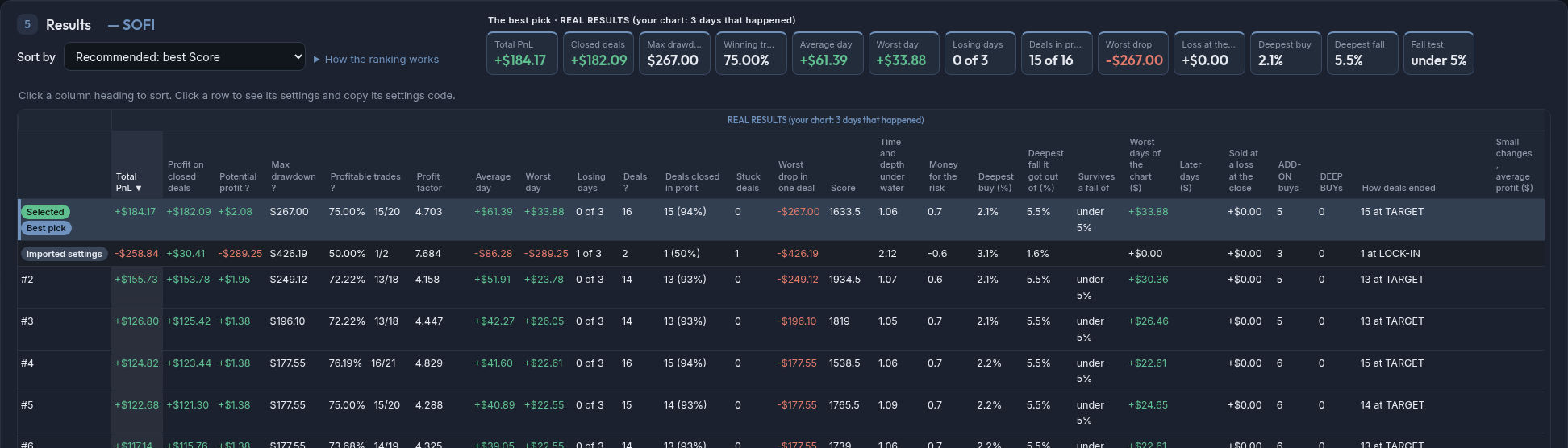
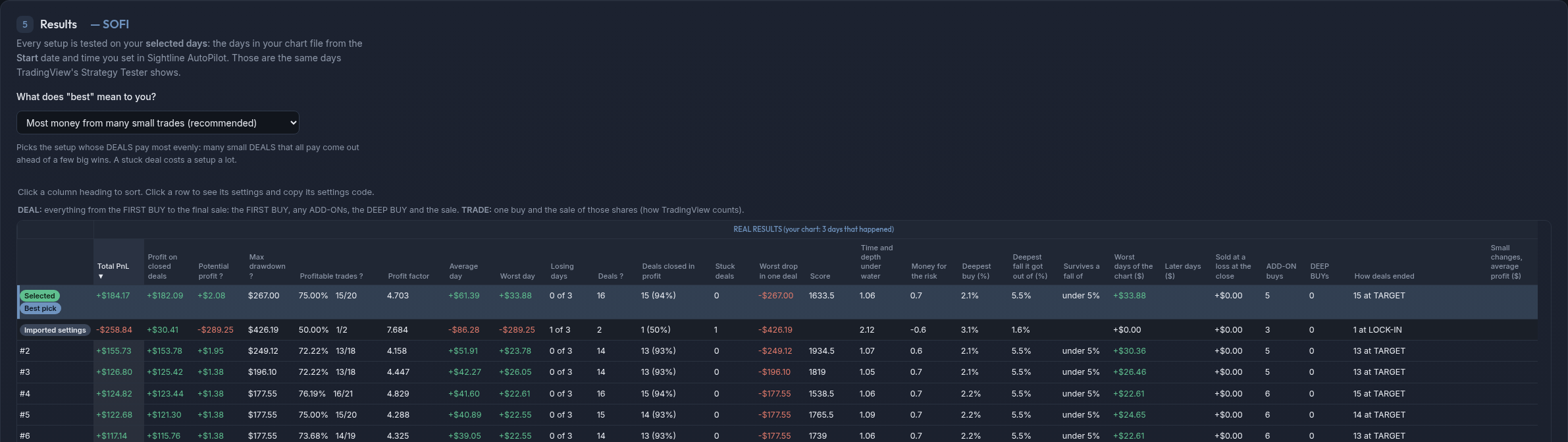
- Choose Optimized or Pro. Optimized: pick your risk level and Calibrate suggests settings for you. Pro: you choose more of the options yourself. Leave Sort by on Recommended (Recommended: best Score).
- Click Start. A bar fills as it runs, and the line under it shows the time left. Wait until it says Finished. The first results to appear are the least tested.
- Copy the best pick into SightLine AutoPilot. Score is how Calibrate ranks the settings it tested. Lower is better. In Calibrate, find your best row: with Sort by on Recommended, the lowest Score is already on top. If you click the Score heading, its arrow should point up (▲). Click that top row, then click Copy settings code. In TradingView, open SightLine AutoPilot's settings. At the top, in the Settings code group, click in the Settings code from SightLine Calibrate box and paste (Ctrl+V). Tick Use the settings code, then click OK. You can also type the settings in yourself, top to bottom, in the same order as AutoPilot's settings menu.
- Make a new alert. An alert keeps the settings it was made with, so delete the old alert for this stock and create a new one.
The best pick is the one that fits your risk level, not always the one that made the most on past prices.
You can tell it how hard to work, so you can keep using your computer while it runs.
Results are simulated from past prices. They don't reflect real trading and don't predict future results.
Saving your two files
How we change your plan.
- We add the SightLine AutoPilot copy for your new plan first.
- Set up your alerts again on the new copy. Each TradingView alert only works with the copy it was made on, so alerts on the old copy don't move across.
- We remove the old copy for you. Moving to a smaller plan removes the higher-limit copy.
The manuals show every click.
Step-by-step manuals, with screenshots along the way. Log in, then click Manuals at the bottom of any page.
Software for everyday traders.
Questions? support@sightlinelabs.org